Showing posts with label editing. Show all posts

Sunday, 18 July 2010

From Poverty to Africa: Retrospection Part 3 - Visuals

This post will deal with the technical and creative sides of the visual elements of the film; the next post will deal with audio elements.

Each scene in From Poverty to Africa was filmed with no more than three consumer-level miniDV camcorders. In the vast majority of scenes, these were mounted on stationary tripods, and each camera was given a different perspective (generally a wide shot and two close-ups). This allowed us to simply roll the cameras and do the scene and then worry about which shots to use in the post-production stage. Had we only used one camera, we would either have had to re-film the entire scene every time something went wrong, or we'd have needed to figure out in advance what shots we wanted and move the camera accordingly. This latter option could threaten the cohesion and flow of the scene, however, since the actors would have to wait for the camera to be moved every time a new shot was required, and any slight movements they made in the meantime would be more noticeable. This technique was employed in scene 15 (on the cliffs), however, and didn't impact it too greatly.

Using three cameras clearly allows the greatest flexibility, but it does use up three times the tape. Furthermore, you should ask yourself: is it better to get three cheap cameras, or one or two good quality ones? Based on our experiences, I would now be inclined to recommend going for two good quality HDV camcorders instead of three old-hat cheapy SD ones. The newer hard-disk-based cameras are also worth considering so that you don't have to worry about tapes. You'll have to have more hard disk space available on your computer for HD video, but that's actually extremely cheap nowadays.

A further issue we had is that we generally only ever had one camera operator available for each scene. One camera operator for three cameras. Great. That means every time the actors take their positions, someone needs to go around each camera checking that it's OK, and if one of the actors goes off shot in one of the cameras that you're not supervising - well, you can't tell. Somehow this was less of a problem than you might think, probably because most of the scenes are so sluggish that the actors stay in one position all the time.

As for the shots themselves, they were strikingly uninteresting and unimaginative. Wide shot, close-up, close-up. Totally static. Very little use of panning and zooming was made. One exception is the long zooming-in to Thomas on the streets of Marseille, which was quite effective. For most scenes, very little thought went into the creative impact of each shot. Most of the time we worked out which shots to have on the day of the shoot, and most of the time it was based on pragmatic rather than creative concerns.

Is Your Action Safe?


A slightly more arcane problem goes as follows. When you record video in a broadcast format (PAL or NTSC), a certain amount of it is cut off when the video is viewed on a television. The amount that's cut off varies somewhat by television. There is a region called the 'action safe' region, within which all action will definitely be visible on all televisions. There are two problems. Firstly, our consumer camcorders do not show the region outside of the action safe region on their LCD displays. Secondly, when you watch such a video on a computer, all of it is visible. Concretely speaking, that means that if the leg of a tripod is on the shot, but is outside of the action safe region, then a bit of it will be visible on some televisions and on any version of the video that is viewed on a computer. Take a look at the right-hand side of the wide shots in scene 40 (outside the George Inn in Frocester, pictured here) and you'll see a tripod leg. This wasn't visible in the camera's LCD display, which is why I didn't flag it up as an issue at the time of shooting. This issue becomes a MAJOR headache when it comes to the green screen shoots, but I'm dedicating a whole post to green screen issues!

There are three ways you can combat this problem (although it's too late for us of course). The best thing is to get a good quality camera that lets you see the entirety of the image being recorded. The second best thing is simply to take account of this phenomenon when shooting. The third idea is to crop out the 'invisible' region when exporting for web.

Lighting


Lighting was not an issue for us because we just ignored it. This didn't really impact on the final product that much, except when it comes to the green screen scenes, which I'll deal with separately. The worst scene for lighting was scene 18, however - the one in the 'Tent Modern'. This scene was filmed in a tent inside a village hall, and the tent itself was not lit. The scene ended up very dark, and I needed to adjust the gamma and apply colour correction to get it looking reasonably decent.

It may come as no surprise that a lot of the scenes in the film were filmed in the daylight but then post-processed to look as though they took place at night. The 'Day for Night' plug-in for Final Cut Pro was invaluable for this effect, although a very similar effect can be achieved by adding a dark blue tint and desaturating the image. The parameters of the Day for Night filter cannot easily be animated, however - i.e. you can't easily make it turn gradually from day to night or vice versa - but I achieved this effect nonetheless at the end of scene 39 (after the restaurant scene) by simply duplicating the clip, adding the filter to the upper clip and animating its opacity (and also decreasing the brightness). You didn't think we left the camera there overnight, did you? No, Matthew left it there for half an hour, and I sped it up to 15000% and added this effect.

It also gets dark at the end of the 'Race to the Finish' sequence. This was easier to do because the shot changes several times, so I simply used different parameters in each shot and didn't need to add keyframes.

At the beginning of scene 52 ('Betrayal and Showdown'), Thomas and Questa are sat in the car at Rodborough Common. In reality, daylight was streaming through the windows, so much so, in fact, that the windscreen was practically white. I removed the white with a luma key, stuck a picture of Rodborough Common on the video layer underneath and added the night-time filters to both layers. The effect is not perfect, but with more tweaking I could probably have improved it.

Cohesion


Scene 7, internally called "Love", is only 20 seconds long, yet, along with the "Kiss Conquers Camel" sequence at the end, it demonstrates an especially tight integration between visuals and music, as well as carefully-considered special effects and narrative techniques. It is worth examining these two scenes in more detail.

In scene 7, Thomas and Questa see each other for the first time in the woods and they fall in love instantly. Thomas drops his axe. Questa drops her logs. They run towards each other and embrace. The scene begins in black and white. All of the flashback scenes up until this point have also been in black and white, intended to symbolise not just the anteriority of the events but also the bleakness of Thomas' situation prior to his meeting Questa. As such, when he sees Questa for the first time in the woods, she alone is in colour, and the woods behind her are in black and white. As she runs towards him, the colour spreads out from her to fill the screen, and from thence on, the film is in colour. In this way, the special effects are clearly exploited to convey the idea of just how much Questa enriched Thomas' life. This scene, incidentally - exactly as I've described it - was part of the very first draft of the film that Matthew wrote, and, despite how clichéd and tacky the idea is, it is a masterful concept.

Remember, you cannot separate the foreground of a video from the background unless you film the foreground subjects on a plain colour background, i.e. a green or blue screen. This scene was not filmed using the green screen, yet I still managed to achieve the effect of isolating Charlotte in colour and putting the background around her in black and white. This was because most of the background consisted of leaves, which are, surprisingly enough, green. So I used the chroma key filter to key out the leaves. I then duplicated the clip and desaturated it (i.e. put it in black and white) beneath the foreground layer, which I cropped so that it framed Charlotte. I increased the edge thinning of the chroma keyer quite liberally, softened the edges, then applied a blur effect to the background to make her stand out even more. An interesting consequence of doing things this way was that when she drops the logs, they turn black and white (you'd have to watch it frame by frame to notice this really, though), which would convey the impression that Questa no longer cares about the logs. This would not have happened if we'd used a green screen (though you could still create the effect if you wanted to).

To make the colour spread out from around her, I duplicated the clip again with no keying or desaturation and placed it between the background desaturated layer and the foreground keyed layer. I applied an oval-shaped matte to this layer and simply animated its size. Similarly, when the shot switched to Thomas, I made the colour spread out towards him from Questa's direction.

I was able to compose music to fit this scene quite precisely. I used a 'call-and-response' structure, so that the piano represents Thomas and the flute that responds to it represents Questa. As the besotted pair get closer to each other, the piece gets faster and the piano and flute start to play together. The instruction at the top of the sheet music was "Allegro e molto formaggio", meaning "Lively and lots of cheese", since both the scene and the music are decidedly cheesy.

The 'Kiss Conquers Camel' sequence is the part where Questa pushes Thomas to the ground and kisses him, causing Claire's intimacy warning system to go crazy and explode and causing the camel to explode and send a last packet of information to the hypermarket, causing it to explode. The music is in fact a remix of the romantic theme that was used for scene 7 - it starts off in emulation of the romantic theme, then becomes more frantic when the shot switches to the scales, and there are chords to match the explosions. This sequence contains very little dialogue, but I think it is very effective at conveying what is going on, since each shot leads quite smoothly into the next, and the close connection between the camel and the hypermarket has been firmly established throughout the scene by the pulses of light that are exchanged every 15 seconds.
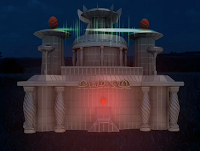
The alien hypermarket was created by DB Digital 3D, a 3D modelling company that I'd strongly recommend - it's very affordable and provides excellent, friendly service. The hypermarket is probably one of the best special effects in the film.


Software


For editing, I was using Final Cut Studio (version 1), which is a professional suite of applications by Apple. Final Cut Pro is the main component of this suite, and in my opinion it is a pleasure to use. It is well worth learning its armoury of keyboard shortcuts, as they can be extremely powerful. For example, it was often necessary for me to move clips along by exact amounts of time - to do this, you can simply click on the clip and then type +5, for example, to move it forward by five frames, or +2.6 to move it forward two seconds and six frames.


I did encounter one bug with Final Cut Pro (at least I assume it's a bug), which caused me to lose the master sequence in which all the scenes were put together; I got the curt error message "Not found" when I tried to open it. You see, each scene in the film is a sequence, and then there is a master sequence that contains all of these sequences in the right order. But some of the scenes contained other sequences themselves and it seems that it is inadvisable to nest too many sequences together. If your project file starts getting big, split it into multiple projects, and if you have too many nested sequences, export one of them as an uncompressed movie. I'm using version 5 of FCP and I'm not sure if you'd get the same issues in the newer versions.

While Final Cut Pro runs extremely smoothly on my aging iMac G5 2.0GHz with 1GB RAM (I know - pretty inadequate by today's standards), Motion and DVD Studio Pro are decidedly sluggish and quite prone to crashing. Motion is Apple's own motion graphics program. I tend to use it purely for its library of particle effects (e.g. the pulses of light that are exchanged between the camel and the hypermarket).

I used The GIMP and Inkscape for image manipulation and creation purposes, such as for the gamut of images that appear in scene 9 to illustrate the camel's history. These are free and open source software alternatives to the formidably expensive Adobe Photoshop and Illustrator applications. In my opinion they are perfectly good for the vast majority of purposes; they are actually quite easy to use and also very stable, even on the Mac, which they weren't designed for.

Advice


Technical film-related advice to others:
  • Get a decent camera. You're making a film. The last thing you want to scrimp on is the camera. I mean, seriously, what were we thinking?
  • Use multiple cameras if possible. Use a clapper-board or some improvisation of one for ease of audio-visual synchronisation (we didn't).
  • Think about what shots you want, and make them interesting!
  • Understand the action safe region!
  • For indoor shots, make sure to take lighting into account.
  • Record a pre-roll before each take - i.e. about 5 seconds of nothing before the action starts. This is because most cameras don't actually start recording (or don't start recording sound) for a little while after you press record.
  • Record a post-roll after each take - i.e. about 10 seconds of nothing after the action finishes. This helps to ensure that there is continuous timecode: if you review what has been shot, you should leave the tape in the post-roll region so that the camera doesn't reset the timecode.
  • If you're using tapes, make sure to number and label them when each one is full. This saves a lot of time later on because it'll be easy to locate the footage you want. You also need to make sure you input the tape's reel number before capturing it to your computer so that it can log everything correctly.
Next we'll look at audio.

From Poverty to Africa: Retrospection Part 6 - Green Screen

The green screen technique can be used to place actors in a location that they're not really in. Basically, you film the scene with the actors standing in front of a plain, green screen; you film the background that you want; and then you use a technique called chroma keying in post-production to make all of the green in the video transparent, so that you can composite the backgrounds behind the actors. This process is useful if it is impractical or impossible to film the scene on location, or if other elements need to be composited in between the actors and the background, such as, to take a completely random example, a giant hypermarket. We used the green screen for some of scene 42 (Loch Ness) because it was clearly going to be impractical to transport all of the required actors to the location. We also used it for scene 29 (the London Underground) and scene 14 (the ferry) for reasons of practicality.

From what I've read online, there is a general perception that using a green (or blue) screen creates enormous problems and that the effect is fiendishly difficult to get right. It is said that you need to have a perfectly even shade of green, which means that you need perfectly even lighting so that there are no shadows; and if you're using a fabric green screen, it needs to be completely crease-free, so they say. In my experience, however, chroma keying is actually quite effective even in seemingly adverse conditions. We were using a green screen that was effectively just a massive green cloth, and it got exceptionally creased, but this did not ever cause any great difficulties with keying. We used two soft box lights on either side of the screen, which effectively removed dark shadows, but we were unable to eliminate shadows altogether; again, chroma keying was still remarkably successful. And yes, the two soft box lights were the only lights we used apart from the room's own lighting.

Nevertheless, there were still problems. The soft box lights generally only pointed at the space behind the actors' upper bodies, so darker shadows were often found further down. In particular, the floor did not have a soft box pointing at it, so the actors' feet were often the most difficult parts to key. Since they generally had dark shoes, there wasn't much contrast between their feet and the shadowy green around them, and this presents the biggest challenge for chroma keying. The most frequent problem is that I ended up with a lot of flickering at the edges of the actors. This is particularly severe around the dead ninjas, and that's precisely because the horizontal part of the green screen did not have a light pointing at it (and was probably significantly creased because of their death throes). Since the ninjas and their shadows are both very dark, separating the screen from the actors is very difficult. I could minimise the flickering only by replacing the parts where they weren't moving with a still frame.

Flickering was also an issue in many parts of scene 52, but I was able to neutralise this quite successfully by adding the rain, smoke and fire effects. (Yes, the rain is only there so that you don't notice the flickering at the edges of the actors; I suppose it happens to add a bit of interest to the scene as well.) Also, the fact that the scene takes place at night helps enormously in covering up chroma keying anomalies, because both the foreground and background layers were dark enough that it's difficult to notice problems.

The end of scene 52 (the 'Saving the World' sequence, as I think of it) was perhaps one of the most complex composites, consisting of 11 simultaneous video layers (and 8 audio tracks, incidentally, two each for rain, fire, music and speech). We re-recorded Matthew's major speech in this section because he wanted to get it exactly right, and we did this with Matthew sitting on the green screen without Charlotte. I then cropped the original take so that it only included Charlotte and juxtaposed the two of them on the background, creating the interesting scenario that Matthew is not actually looking at her during this line. To create the effect of the light from the fires flickering over the scene, I applied the 'Travel Matte - Luma' composite mode to some stock footage of flames; I also used colour correction to try and give a more realistic hue to the scene. The line of fire was composited behind the actors and above them were smoke and then rain particle effects from Apple's Motion application. The blurring of the background is also an effective touch.

A further problem with the green screen technique was the difficulty in getting a good wide angle shot. If the actors aren't moving on and off the shot, then it technically doesn't matter if the green screen doesn't fill the whole frame of the video, because you can simply crop the non-green parts straight off. However, if one of the actors goes just slightly too far to the edge of the screen, or even leans off it, as occasionally happens in scene 42 (Loch Ness), then the part of them that goes off shot will seem to vanish, as though they were leaning through an invisible portal. To further complicate matters, the fact that our camcorders didn't show the area outside the action safe region meant that the wide shots of the green screen almost always had at least some non-green border around them. For those parts where an actor has to come on shot or go off, such as when Jeanne and the ninjas come on shot on the shore of the loch, or when the panicked passengers dance into the limelight on the sinking ferry, this can be a headache-inducing problem. There are basically three fixes. Firstly you can move the scene so that the troublesome edge is right on the edge of the frame. This may not work if both of the edges are troublesome and it may not be desirable if it puts one of the actors half off-shot. Secondly, you can simply scale up the shot so that the edges of the green screen match the edges of the background. I was wary of doing this, but frankly, you can hardly tell. Thirdly, you can use animated garbage mattes - i.e. little shapes that selectively remove the non-green stuff that you don't want to see. This is the most difficult because you have to go through each frame individually and set the right parameters. I used a combination of these fixes to solve the problem, but my advice to anyone else is just to make sure that the green screen fills the frame of your shot at all times during filming (unless you're absolutely certain that the actors won't drift to the edges or go partially off-shot).

There are six stages to the chroma keying process. My descriptions here will refer to the process in Final Cut Pro, but I imagine it's similar in other editing applications:
  1. Start with the chroma key filter itself. In FCP, you simply use the colour picker tool to click on the colour you want to remove, and then hold shift to pick other colours or shades of it. You then have to fine-tune the key by adjusting the sliders to include other colours, and to take into account different saturation and luma levels of those colours.
  2. At this stage, most of the green screen is gone, but there's generally a green border around the actors and possibly a few awkward splodges of green elsewhere. Increase the edge thinning and they'll go away.
  3. Sometimes the edge thinning removes too much or too little, and so you can try adding the matte choker filter, which does practically the same thing but is a bit more subtle. I almost always had to use this.
  4. The edges are often a little jagged at this point, so adjust the softening slider in the chroma key filter and the corresponding slider of the matte choker filter; this softens the edges.
  5. Now you've got rid of green edges, but the edges of the actors themselves tend to have a green tint to them, and a slightly subtler green tint is often noticeable across the whole shot. This is due to the reflection of green light back onto the actors. FCP's chroma key filter has an 'enhance' slider that desaturates the edges of the key so that this is less noticeable, but in my experience it generally isn't very helpful, and I use the spill suppressor filter instead. This filter adds magenta to the shot, which has the effect of 'cancelling out' the green tint because magenta is opposite green on the colour wheel. In my experience, this filter is highly effective.
  6. Now, you need to use colour correction so that the lighting conditions of the background appear to match those of the foreground. Technically you should try to light your subjects when they're on the green screen in a manner that corresponds to the background's lighting conditions, but we didn't have the lights to do this. Scene 52 took place at night anyway, so it was enough to reduce the brightness and saturation of both foreground and background; I did use colour correction, however, to take account of the red glow that comes from the hypermarket's gem. Another useful idea is to apply a blur filter - only a subtle one - to the background, which gives a differential focus effect. I did this for the Loch Ness scenes and for the 'Saving the World' sequence at the end; in the latter case I think it was particularly effective, given the smoke effect in front of it.
So, although the green screen technique can allow you to achieve quite sophisticated effects and to overcome certain pragmatic limitations, and although it's actually a lot easier than it's often portrayed, it's worth pointing out that it does have its limitations. For example, it's exceptionally difficult to do any panning or zooming over something that's shot on a green screen, because you would need to do the exact same panning and zooming on the background. The only panning that I was able to cope with in this film was when the camera moves up to look at Thomas and Questa when they struggle to their feet after experiencing the alien's mind-implanted message. (The technique of motion tracking is designed to solve this sort of problem, but I believe you need dedicated compositing software.)

Sound Problems


We put up our green screen in a village hall, yet the scenes were supposed to take place on a ferry, on the London Underground, on the shore of a loch and on a grassy common. Acoustically, these environments are nothing like a village hall. Hence the reverberation that you hear on the actor's voices during these scenes. Even more noticeably is the sound of their footsteps as they walk on the hard floor of the village hall - not really the sort of sound you'd expect pebbles or grass to make. I cunningly replaced some of these footstep sounds with more appropriate ones for Loch Ness, but other inconsistencies may remain. Another interesting part was when Jeanne (Amber) threw her hat away when she removed her disguise in scene 52: that hat actually made quite a reverberating thud as it hit the hard floor of the village hall, which is not what you'd expect from the grass of Rodborough Common. I replaced this sound with something more appropriate, but this would not have been possible if someone had been delivering a line at the same time as the hat's impact, because you can't reliably separate a "hat impact" sound from a speech signal in a single audio stream.

Advice


Green screen advice for amateur film-makers:
  • Carefully consider whether or not the green screen technique is workable for your scene and what the implications might be.
  • Think about what type of green screen is best for you: we used fabric but you can also use a plain board or even just paint the wall of your garage.
  • Lighting is important, but don't obsess about getting rid of every last shadow. Only the really dark shadows are evil.
  • Similarly, don't obsess over creases; they aren't that problematic.
  • Make sure that the green screen covers the whole frame of the video unless you're sure that the subject isn't going to exceed its borders at any point.
  • Consider the acoustic implications of your green screen studio - any impact with the ground is likely to make the wrong noise, for example.
If you are thinking of doing green screen stuff and you would like more detailed advice, do feel free to contact me (and the same goes for anything else I've written).

The next part in the series is somewhat trivial.